
Transcript
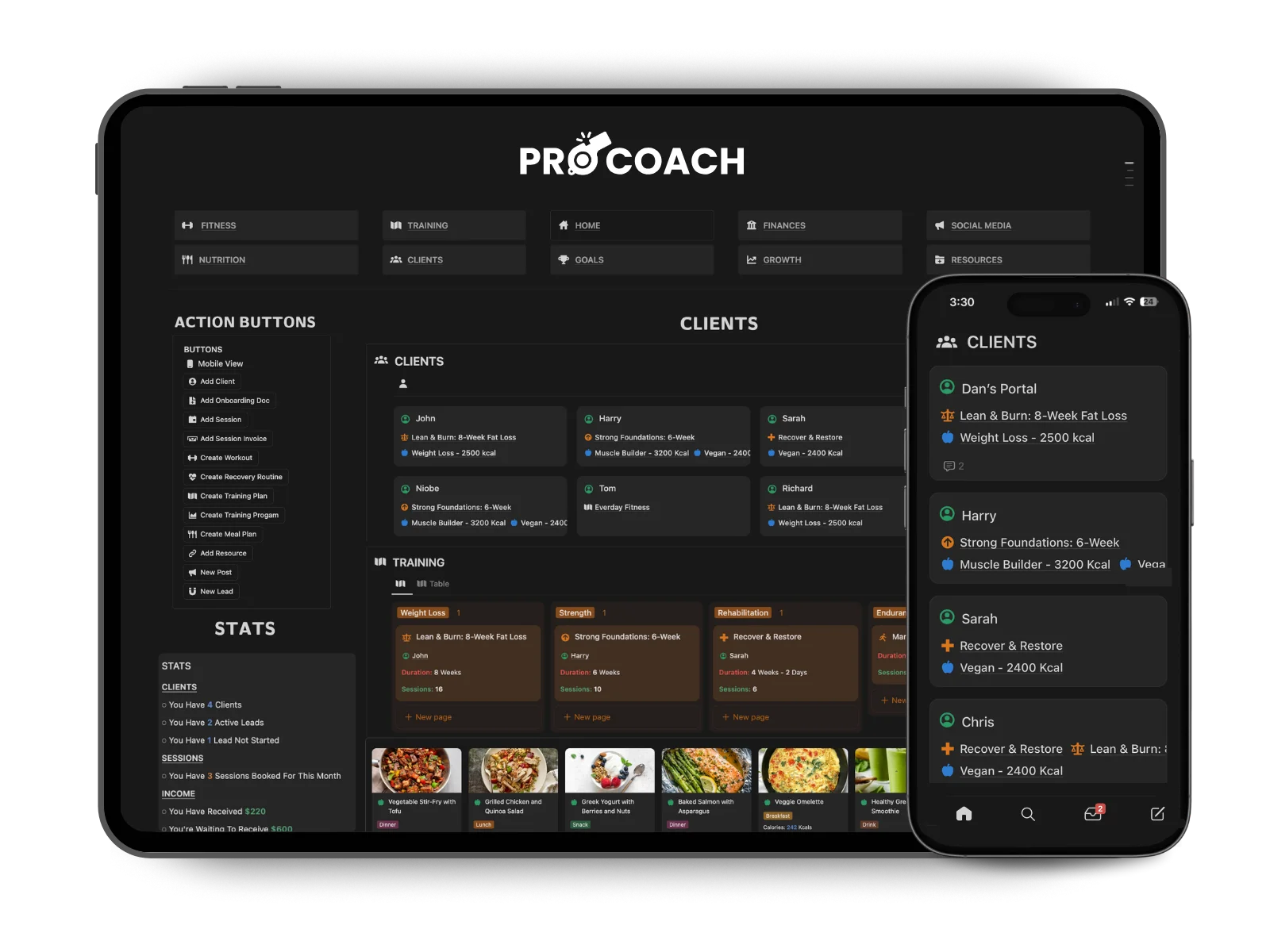
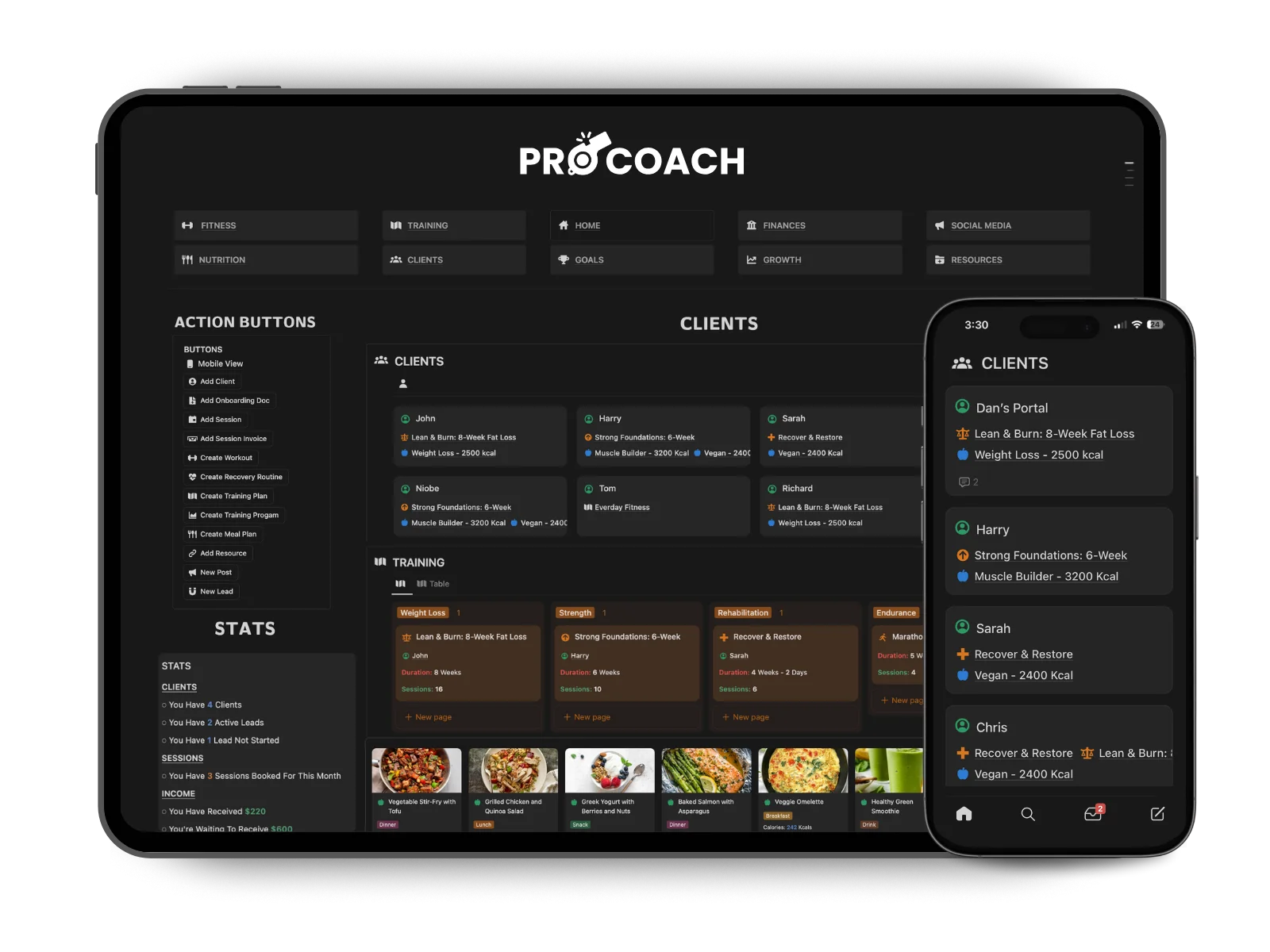
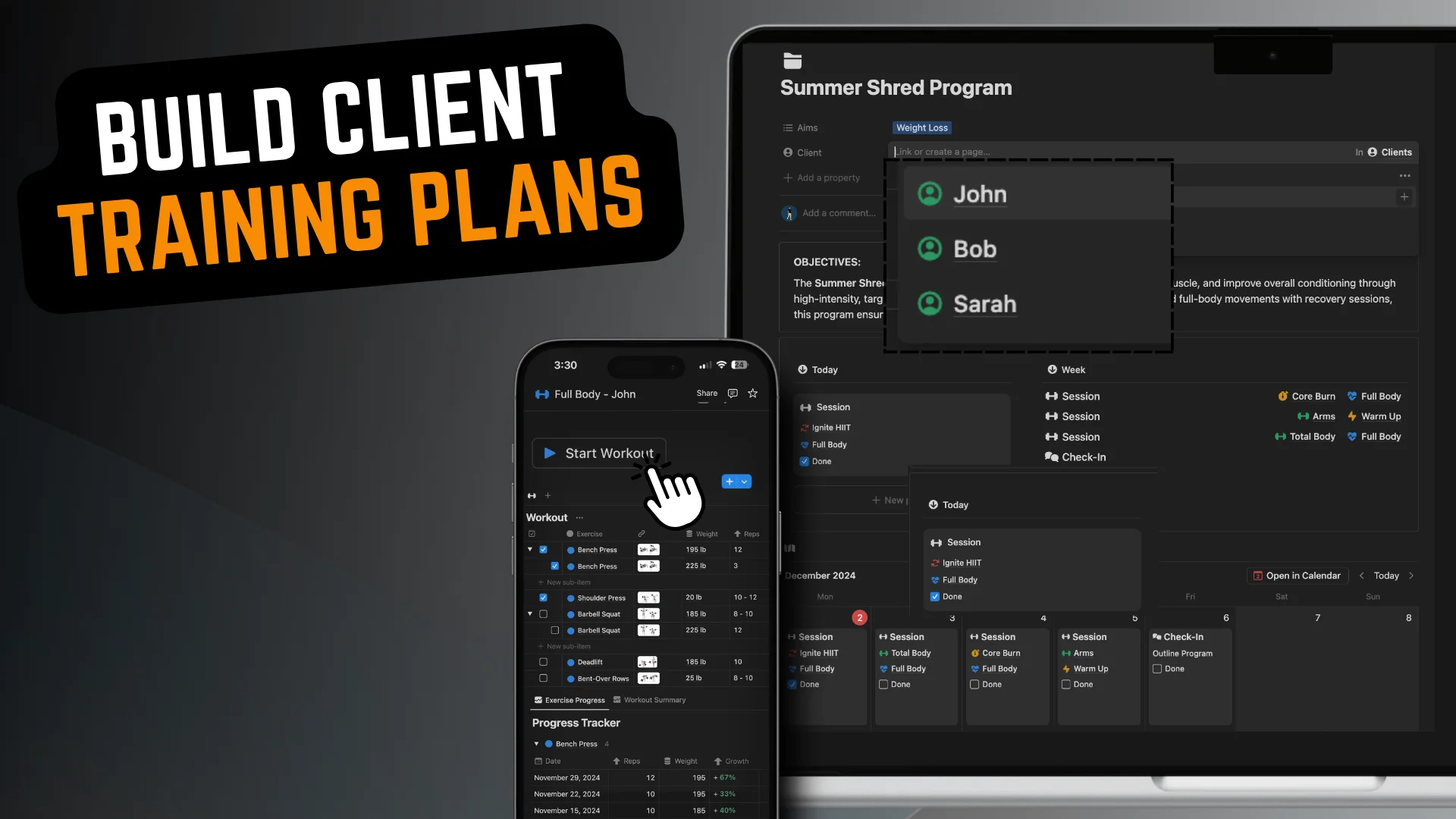
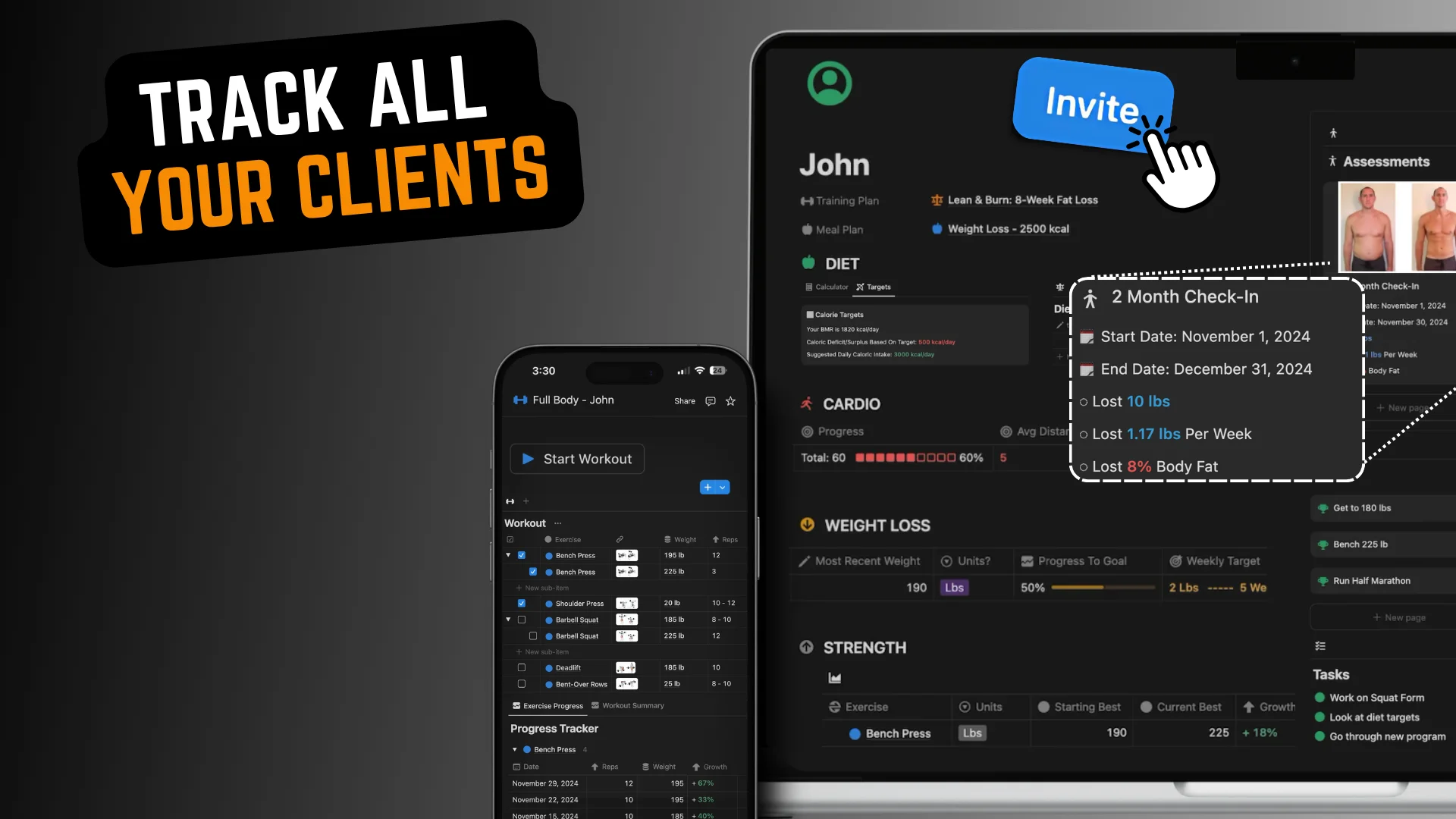
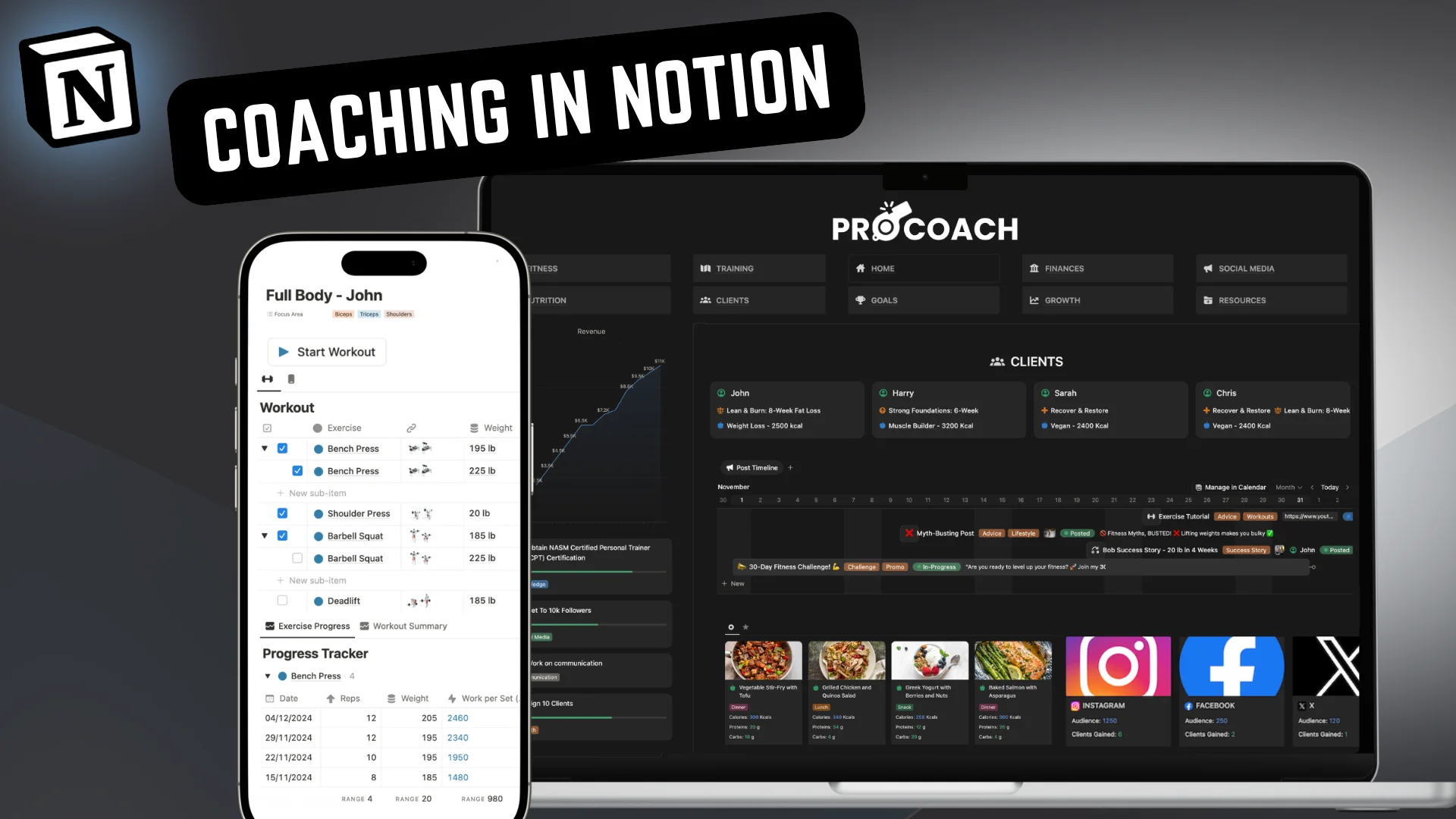
Intro (00:00) In this short video, I'll walk you through the different ways you can create, assign and share training plans with your clients through Notion. I'm using the PRO COACH dashboard, a template that has all the systems and features pre-built, so you can start using Notion for your in-person or online coaching business straight away. Creating Sessions (00:20) Before we can create a new plan, let's build a session. On the fitness page, I can access all my different movements. There are already over 100 different movements with example imagery pre-added to the dashboard, but you can add any number of additional exercises or stretches, upload your own example video, and add required equipment or detailed form notes. There's also a variety of session formats to choose from, such as regular, interval, AMRAP or timed. Each of these workout formats has its own layout and progress tracker. Workout Folders (00:51) You can also create workout folders to organise and group your sessions. For example, I've set up a folder for different interval workouts, labelled by difficulty. I can quickly assign or share this folder with a client, or add it directly to their portal for easy access. This is a great way to provide new clients with all the relevant workouts for their goals or skill level. To create a session, simply add movements into each row and add notes, weights, reps and sets. For other workout types, there are columns for things like timings or rounds. It's that easy. Mobile View (01:26) To complete workouts, my clients and I can use the free Notion app. I simply press "Start Workout" to reset completed exercises, and I can easily switch between different views to suit my preferences. Plans & Programs (01:37) Now let's look at the different ways to build training plans for our clients. I can create simple plans, or design programs that include progress tracking and repeating sessions. Training Plans (01:46) Here's an example of a basic training plan. I can add a description and use the session table to map out the different workouts, recovery routines and warm-ups. It's then automatically shown on the built-in calendar. If I want to assign it to a new client, I just link their name and it'll show up on their portal page. Training Programs (02:03) If I go into a training program, the layout is slightly different. At the top of the program page, clients can access today's session details and look at all upcoming sessions. Workout Progress (02:14) In programs, clients have the option to track their workouts. This lets you view a history of their exercise progress, along with a workout summary that includes key performance metrics like work volume. Each workout type comes with its own progress tracker, so you can monitor specific metrics such as endurance, speed and strength. This is a powerful and simple way to gain insight into a client's progression, helping you identify trends and celebrate their achievements. Sharing Plans (02:43) To share plans or programs with clients, I have multiple options to choose from. The first option is to assign it to them, so it shows up at the top of their portal page. Or I can share the plan or program page using their email and adding them as a guest. Another option is to duplicate an existing plan or program and move it to their portal page. This sends it to their page, where they can access it along with all their other coaching details: session notes, assessments, meal plans and more. This means you can create plans once and share them instantly across any number of new clients. Outro (03:17) The PRO COACH setup in Notion is designed to streamline your coaching, so you can handle more clients and have complete freedom to manage your business the way you want. It comes with a detailed setup guide and a wiki section with tips and instructions on how to customise the design and layout to fit your brand and style. You can get instant and lifetime access by following the link in the description. Thanks for watching.